How to Read Articles Offline on Any Device
Updated · 16 min read
Listen to this post
Contents
- TL;DR
- Table of Contents
- The quick answer by device
- Save articles to read offline in Safari
- Save articles as PDFs on Apple devices
- Apple News and offline reading
- Save web pages offline in Chrome
- Option 1: Save the page as a file on desktop
- Option 2: Print to PDF
- Option 3: Reading List and downloads on mobile
- Test your offline setup before you need it
- Why a saved page can be incomplete
- Use a read-later app when you save a lot
- Keep an offline library you will actually read
- Offline reading when you would rather listen
- A note from us on saving versus understanding
- Save to Omphalis and keep your notes with the source
- A setup that works for common situations
- A student with a stack of papers
- A professional tracking an industry
- A traveler with a long flight
- A podcast and video listener
- A short checklist before you go offline
- FAQ
- Can I save a web page to read offline without an app?
- Why do my saved articles not open without Wi-Fi?
- Will paywalled articles work offline?
- Do saved articles sync between my phone and laptop?
- How many articles should I save at once?
- Sources
- Recommended
To read an article offline, save a full copy to your device before you lose your connection. You can do that with your browser's reading list, a saved PDF or web page file, or a read-later app that stores a clean text version. Then check that the copy opens in airplane mode, because that is the step most people skip, and the one that tells you whether the save worked.
This guide walks through each method on iPhone, Android, and desktop. It also covers why some saves come out broken, and how to keep an offline library from turning into a pile you never open.
TL;DR
- Safari, Chrome, and most read-later apps can store articles for offline use, but some need a setting switched on first.
- A PDF is the most portable format. A saved web page is more faithful to the original but fragile, because images live in a separate folder.
- Test every new setup once in airplane mode. Saves can quietly capture a cookie banner or login wall instead of the article.
- Paywalled, interactive, and video-heavy pages often arrive incomplete. Plan for that before a flight, not during it.
- Keep the list short and attach your notes to the passages you saved the article for, or you will not come back to it.
Table of Contents
- The quick answer by device
- Save articles to read offline in Safari
- Save web pages offline in Chrome
- Test your offline setup before you need it
- Why a saved page can be incomplete
- Use a read-later app when you save a lot
- Keep an offline library you will actually read
- Offline reading when you would rather listen
- A note from us on saving versus understanding
- Save to Omphalis and keep your notes with the source
- A setup that works for common situations
- A short checklist before you go offline
- FAQ
- Sources
The quick answer by device
The right method depends on where you read. This table is the short version, and the sections below give the steps.
| Where you read | Easiest way to save | What to check |
|---|---|---|
| iPhone or iPad | Safari Reading List with offline saving turned on | The "Automatically Save Offline" switch in Settings |
| Mac | Reading List, or print to PDF | iCloud sync for Safari, or the PDF in Files or Books |
| Android | Chrome's download-page option | The file appears in Downloads and opens in airplane mode |
| Windows or Mac with Chrome | Save as "Webpage, Complete", or print to PDF | The .html file and its companion folder stay together |
| Any device, many sources | A read-later app with an offline library | Whether it saves the full article text, not just the link |
Save articles to read offline in Safari
Safari's Reading List is the built-in route on iPhone, iPad, and Mac. One detail trips people up: adding an article to Reading List does not by default guarantee that you can open it without a connection.
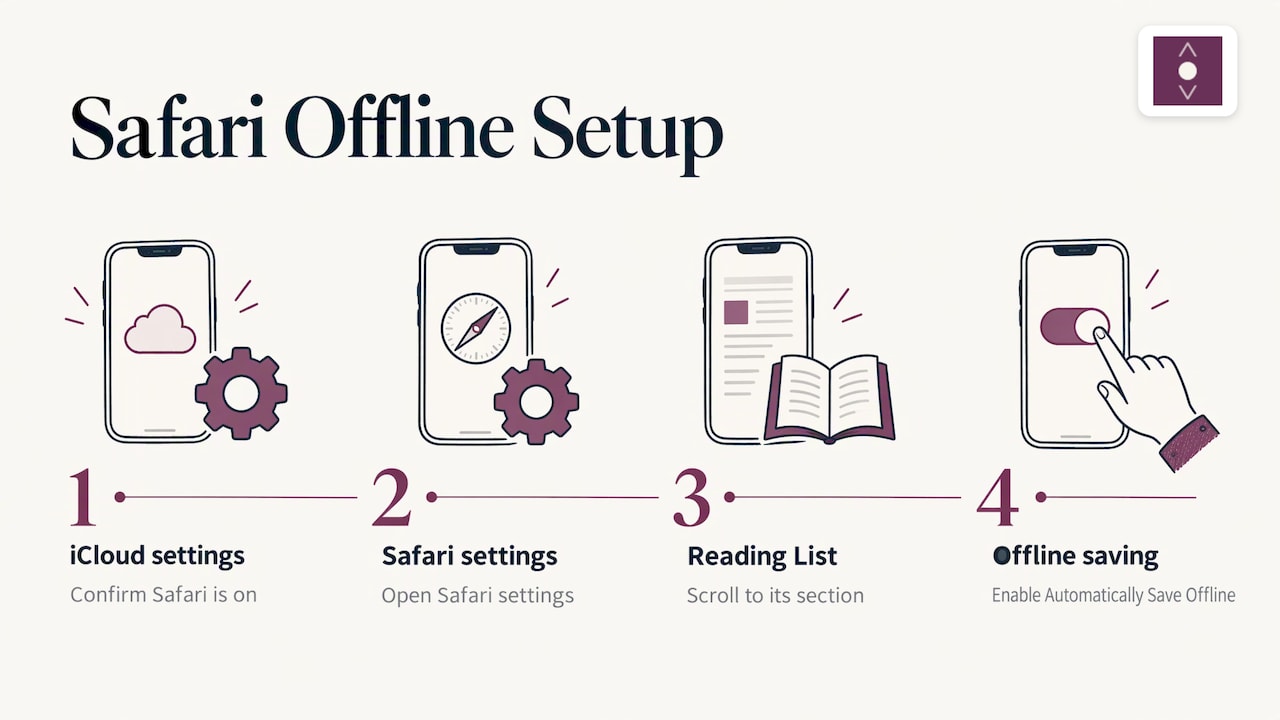
To make offline reading work on iPhone or iPad, first confirm that Safari is switched on under your name in Settings > iCloud. Then go back to Settings > Safari, scroll to the bottom, and find the Reading List section. How-To Geek's walkthrough shows this path and the offline toggle in that section. AppleInsider also advises manually enabling the "Automatically Save Offline" option so articles are actually downloaded for offline use.
Reading List items sync through iCloud and show up on every device signed in to the same Apple ID, according to Macworld. The same piece points out that Reading List behaves more like an enhanced set of bookmarks than a reader. It does not automatically give you a simplified text view, so you may want to tap Safari's Reader option on pages that are cluttered.
Save articles as PDFs on Apple devices
If you want a copy that looks the same on every device, save the page as a PDF. AppleInsider notes that PDFs preserve the original layout and stay widely compatible, and that on Apple devices you can file them in Files, Apple Notes, or Apple Books.
A PDF also solves a second problem. Web archive files are not widely supported outside Apple's ecosystem, as the same guide explains, so a web archive you saved on a Mac may not open on a Windows laptop or an Android tablet. A PDF opens almost anywhere.
Apple News and offline reading
Apple News+ subscribers can download full articles and magazine issues. According to AppleInsider, the setting lives at Settings > Apps > News > News+ Offline Mode. People without a subscription can add stories to Saved Stories, but those stories will not be available without an internet connection. This is why many readers end up using a mix of tools: one for magazine content, one for everything else on the web.
Save web pages offline in Chrome
Chrome gives you three practical options, and they suit different jobs.
Option 1: Save the page as a file on desktop
On a computer, press Ctrl+S on Windows or Linux, or Cmd+S on a Mac. Choose "Webpage, Complete". Chrome writes an .html file plus a companion _files folder that holds images and stylesheets. ExtensionTo's Chrome guide warns that the two must stay together. If you move the .html file alone, the images go missing.
This method is fine for a handful of articles you will open on the same machine. It is clumsy for a library, because you end up managing loose files and folders by hand.
Option 2: Print to PDF
Press Ctrl+P or Cmd+P, then pick "Save as PDF" as the destination. You get one self-contained file that you can email, drop into a cloud folder, or open on a phone. It is usually the safest choice when you need a single dependable copy.
For long PDFs you want to mark up on a tablet, our guide to annotating PDFs on an iPad covers workflows that suit students.
Option 3: Reading List and downloads on mobile
Chrome's Reading List syncs between devices only if sync is on. Go to chrome://settings/syncSetup, confirm you are signed in, open "Manage what you sync", and make sure the Reading list toggle is on, as ExtensionTo describes. On Android, Chrome can also download a page to your device, and you find it later in Chrome's Downloads. A guide to Chrome on Android describes managing saved pages through Downloads on mobile and through Reading List or Save As on a computer.
Test your offline setup before you need it
The most useful habit in this whole guide takes two minutes. Turn on airplane mode, or disconnect from Wi-Fi, and open one of your saved articles. If it opens and the images render, the setup works.
The author of ExtensionTo's guide runs this check once a month and reports that it caught saves that had silently captured a cookie wall instead of the article. That failure is common. The page you saw while online and the page the saving tool captured are not always the same thing.
A simple routine:
- Save the article while online.
- Switch to airplane mode.
- Open it from the place you will look for it later, not from the tab you saved it in.
- Scroll to the end and check that images, tables, and footnotes are there.
- Switch Wi-Fi back on.
Do this once for each new method, and again before a long trip.
Why a saved page can be incomplete
Sometimes the save works and the page is still wrong. The usual causes:
- Paywalls and logins. A saving tool may capture the teaser or the login prompt rather than the article you were reading when signed in.
- Interactive elements. Embedded videos and dynamic content may not function properly offline, so charts you could hover over online may arrive as blank space.
- Lazy-loaded images. Images that load only as you scroll may not be stored if you saved before scrolling down the page.
- Format limits. A file format that works on one platform may not open on another.
The fix is cheap. Scroll the whole page before saving, sign in first when the article needs it, and use a PDF when layout matters. For anything interactive, save the underlying data or a transcript if the publisher offers one.
Use a read-later app when you save a lot
Browser tools work for a few articles a week. Once you save more than that, the weakness is not the download. It is finding and finishing what you saved.
Macworld's overview of read-later services describes what the category has in common. You mark something for later, you open it through an app even when you are offline, the text becomes searchable, and you can manage read and unread items. Most of these services strip sidebars and ads, enlarge text to a legible size, and give you controls for typeface, size, and background color.
When you compare apps, check these things:
- Does it store the full article text for offline use, or only the link?
- Can it import the formats you actually have: PDFs, EPUBs, Word files, feeds?
- Can you search across everything you saved, including your own notes?
- Can you export your library if you leave?
- Does it handle podcasts and video as well as web pages?
We wrote a longer breakdown by type of tool in our guide to read-later apps that help you finish what you save.
Keep an offline library you will actually read
Offline reading fails less from technology than from habits. A long list feels productive when you build it and heavy when you open it.
The ExtensionTo author reports that once his Chrome Reading List passed roughly thirty items he stopped using it, calls this the normal failure mode of every read-later system, and now caps his list at ten. You do not have to copy the number. The idea is worth copying: decide how many unread items you are willing to carry, and stop saving when you hit it.
Some practical rules that help:
- Save with a purpose. Write one line on why you saved it: a project, a question, a class.
- Batch your reading. Pick a regular slot, such as a commute or a flight, and load it with three to five items.
- Delete without guilt. If an article has sat for a month and you feel nothing, it was not for you.
- Keep the passage, not just the page. The part you will want later is usually one paragraph. Highlight it and write what it means to you while you still remember.
- Use folders sparingly. Tags and a search box beat a deep tree of folders you have to remember.
For students, a highlighting system matters as much as a saving system. Our guide on turning PDF highlights into flashcards shows one approach, and if you work in a browser, you can highlight PDFs in Chrome, Edge, and Firefox without uploads or extensions.
Offline reading when you would rather listen
Sometimes offline means a drive, a run, or a flight, and your eyes are busy. In that case listening is the better format. We covered how to listen to web pages offline with the text and notes intact, and if your material is in PDF form, listening to PDFs with notes explains the same idea for papers and reports.
A note from us on saving versus understanding
Most offline reading advice stops at the download. You saved it, it opens without Wi-Fi, done. In our experience the harder problem starts after that: a library of saved pages that you never come back to, or come back to and remember nothing from.
We built Omphalis around that gap. Saving an article should leave you with a clean, structured version of it, not a link to a page that may change or vanish. When a passage is hard, you should be able to get an explanation next to it without leaving the source. When you write a note, it should stay attached to the exact passage that prompted it, so that reopening the note reopens the passage.
That is why we lean toward comprehension over speed. A shortcut that replaces the source can leave you feeling fluent without actually understanding. We would rather keep you with the full text, help you move through it, and let you ask questions that answer with citations from the source itself.
If you save articles, papers, podcasts, or videos for later, ask one question of your system: when I open this in three months, will it help me remember why I saved it? Build around that answer.
Omphalis Team
Save to Omphalis and keep your notes with the source
If you want one place for articles, papers, and podcasts, Omphalis lets you save, read, and annotate them in a structured reading view. It cleans and structures content, explains complex passages inline, and keeps your notes attached to the original text. You can import PDFs, EPUBs, Word documents, and feeds, and export your library when you need it.
The browser extension for Chrome and Firefox saves a page as you browse. There is a free plan, and paid plans start with Pro at $9 per month or $90 per year. See the Omphalis pricing page for what each tier includes, including Premium and Scholar.
A setup that works for common situations
Here is how the pieces fit for a few readers we hear from.
A student with a stack of papers
Use PDFs as your base format, since they keep pages, figures, and page numbers stable for citation. Keep each course or project in its own notebook, highlight the claims you may cite, and add a line in your own words under each. Before exam week, open your notes on the passages rather than rereading entire papers. Our guides on annotating PDFs on Windows, Mac, and mobile and extracting images from PDFs help when a figure has to go into a slide or a study sheet.
A professional tracking an industry
Your problem is volume. Save only items you would be willing to discuss with a colleague. Keep a short weekly reading list, and after each article write one sentence on what it changes for your work. Connections between articles matter more than any single article, so look for the ones that repeat or contradict each other. Our docs explain how to evaluate suggested connections and go deeper.
A traveler with a long flight
The night before, save five items, open each in airplane mode, and confirm images and tables show up. Add one long read and one podcast episode or audio version for the stretches when you are tired of screens. Charge a battery pack, because offline reading runs down a phone more than people expect.
A podcast and video listener
Spoken content is hard to search later. Take timestamped notes while you listen, then turn the key moments into written notes. Our guide on annotating YouTube videos into study-ready notes shows a hybrid workflow that works the same way for podcasts.
A short checklist before you go offline
- Saved items open in airplane mode, with images.
- You scrolled each page fully before saving.
- You signed in first for anything behind a login.
- PDFs are in a folder or app you can reach without a network.
- Sync settings are on for every device you plan to use.
- Your unread list is short enough that you will actually look at it.
That last line is the one most people skip. The best offline setup is the one you open.
FAQ
Can I save a web page to read offline without an app?
Yes. On a computer, use your browser's save option to store the page as a file, or print it to PDF. On iPhone, use Safari's Reading List with offline saving switched on in Settings. On Android, Chrome can download a page to your device. All of these work without installing anything.
Why do my saved articles not open without Wi-Fi?
The usual reason is that the tool saved a link rather than the content. In Safari, the offline option in the Reading List settings may be off. In Chrome, a saved .html file loses its images if you move it away from its companion folder. Try airplane mode right after saving, so you find the problem while you still have a connection.
Will paywalled articles work offline?
Often not fully. A saving tool may capture only the visible teaser or a login prompt. Sign in before you save, scroll the whole page, and prefer a PDF copy if the publisher allows it. If the article is part of a subscription like Apple News+, use that service's own download setting.
Do saved articles sync between my phone and laptop?
Only when sync is on. Safari's Reading List syncs through iCloud across devices signed in to the same Apple ID. Chrome's Reading List syncs when you are signed in and the Reading list toggle is on in your sync settings. PDFs sync through whichever cloud folder you keep them in.
How many articles should I save at once?
Fewer than feels natural. One person who tracked his own habit found his list stopped working at around thirty items and now keeps it to ten. Pick a number you can finish in a week and treat it as a cap.
Sources
- How to Save Web Pages for Offline Reading in Safari on iPhone, How-To Geek
- How to build and organize your own offline article library, AppleInsider
- How to use Pocket, Instapaper, Evernote, and Safari's reading tools, Macworld
- Save Articles to Read Later and Offline in Chrome, ExtensionTo
- How to download web pages in Chrome for Android and read them offline, Android Ayuda