Highlights and notes
Highlights that take you back to the passage, not just the quote.
A highlight copied into a list loses the sentences that made it matter. In Omphalis a mark stays on the passage in the source, with your note beside it, and opening the mark takes you back to it with the text around it still in view.
Highlight articles, PDFs, podcast transcripts, and YouTube talks in one Library. Highlights, notes, and tags are on every plan, including Free.
Start free
New accounts get a 30-day trial of every feature, no card needed. After that, Free stays free.
Mark the passage and say why
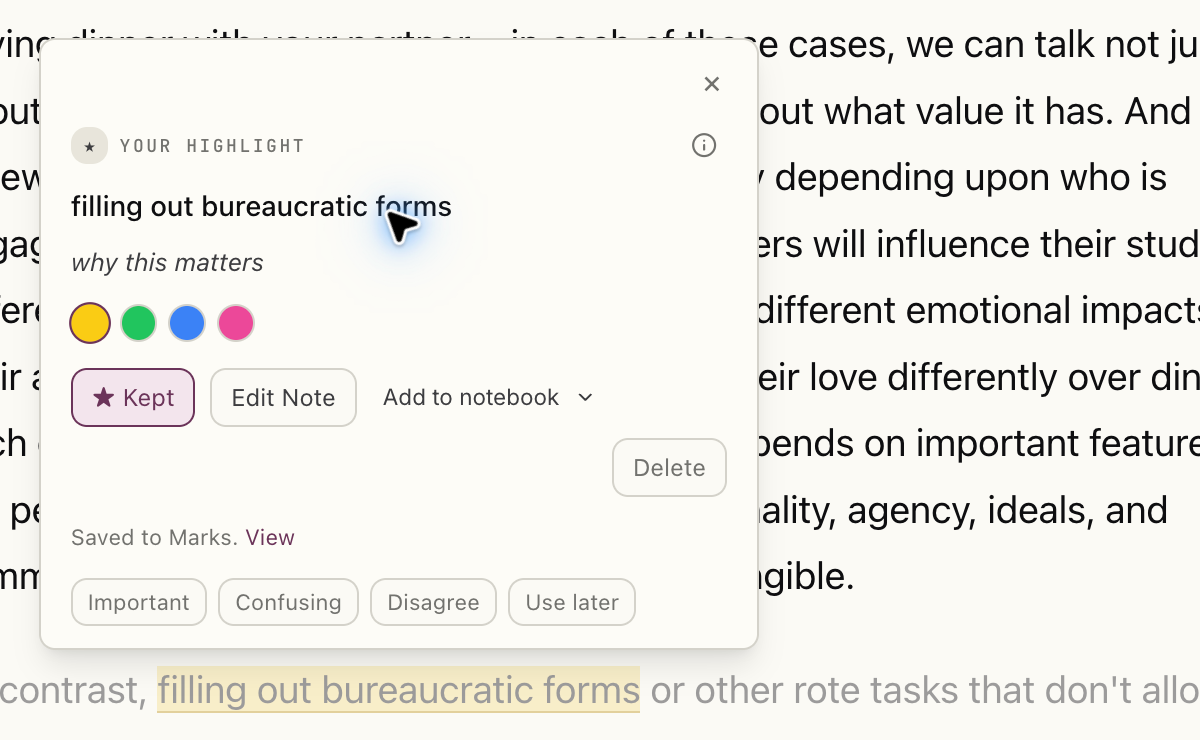
Select a passage, pick yellow, green, blue, or pink, and write a note if you want to remember why it stopped you. A highlight is anchored to its words and the text on either side of them, so it stays on the right passage even after the item is processed again.
Select the image to see the detail.
Keep an explanation and tag it
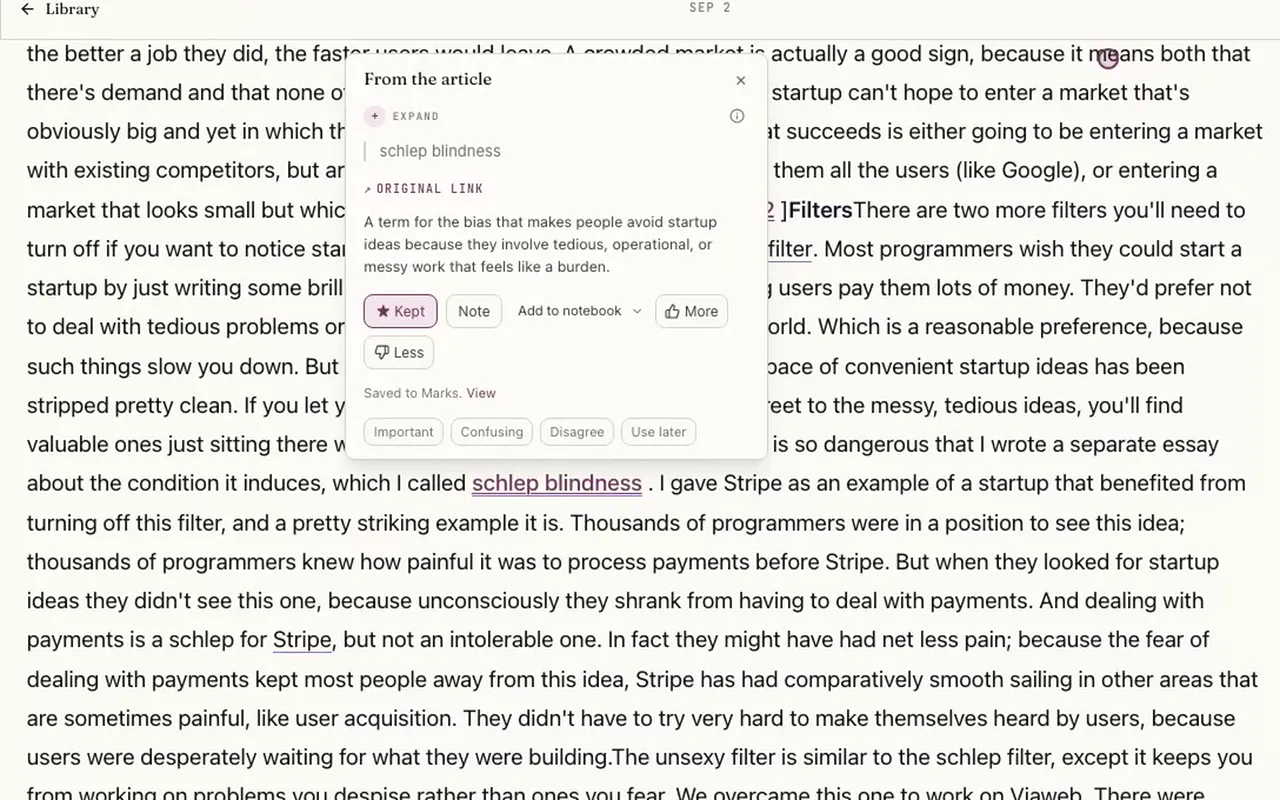
Explanations open beside a hard passage (Source, Define, or Expand), and you can keep the ones worth coming back to. A kept mark takes one tag: Important, Confusing, Disagree, or Use later. Adding a note to an explanation keeps it too, so it is never left out of your Marks.
Select the image to see the detail.
Come back with the text around it
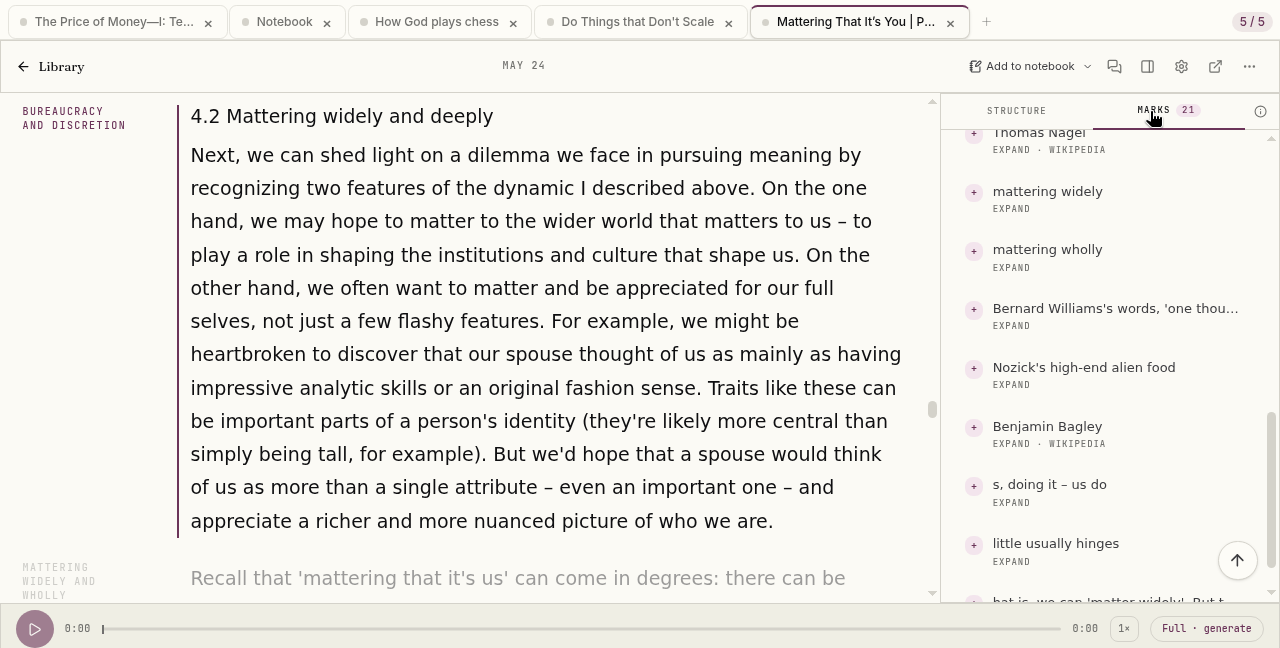
In the reader, the Marks rail lists every mark in the piece you have open. Choose one and the reader scrolls to it.
Select the image to see the detail.
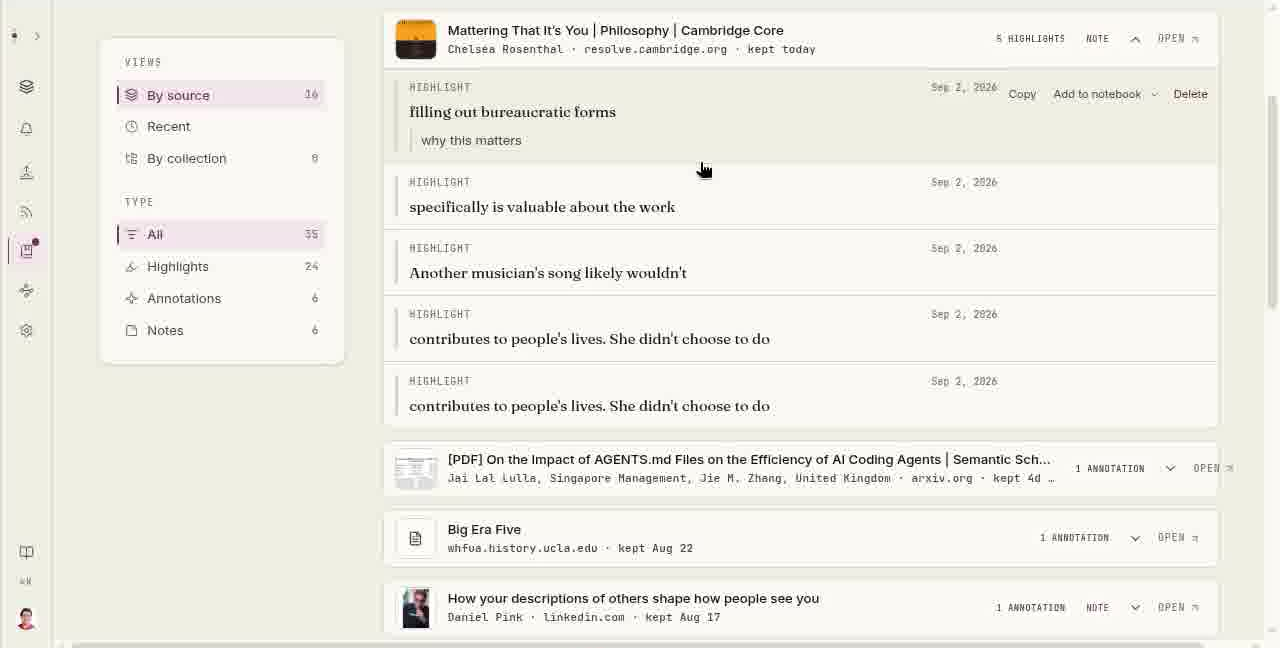
Across your Library, the Marks list gathers everything you kept, by source, most recent first, or by Collection. Filter to highlights, annotations, or marks with notes, and search by the highlighted words, your note, or the source's title. Select a mark and the preview shows it in context; Open article takes you back into the source at that passage and briefly flashes it so you can find your place. Open beside a source opens the whole piece.
Select the image to see the detail.
Wherever you read
The Chrome and Firefox extensions highlight any web page, saving it to your Library first so the mark has a home. In the iOS and Android apps, long-press to highlight; highlights made offline sync when you are back online. A PDF opens as a cleaned reading page, and that is where you highlight, not on the original PDF pages.
Take them with you
Your Library is kept for as long as you keep it, and you can export it any time. In Settings, Export Your Library writes each item as a Markdown file with its marked passages. In the Library, Manage then Export, with Marks ticked, includes your highlights with their notes and tags, grouped by source.
A few practical questions
- How do I highlight a passage and add a note?
- Select the passage on the reading page, choose a color (yellow, green, blue, or pink), and write a note if you want to say why it stopped you. The highlight and the note stay on that passage. On the iOS and Android apps, long-press to highlight.
- Do highlights keep the text around them?
- Yes. A highlight is anchored to its words and the text on either side of them, so it stays on the right passage, even after the item is processed again. In the Library Marks list, the preview shows the passage in context, and Open article takes you back into the source at that passage.
- Can I tag highlights?
- Yes. Once a mark is kept, give it one of four tags: Important, Confusing, Disagree, or Use later. A mark carries one tag at a time. Adding a note to an explanation keeps it, so it shows up in your Marks.
- Can I highlight PDFs, podcasts, and YouTube videos?
- Yes, on the reading page. A PDF opens as a cleaned reading page, and you highlight that page rather than the original PDF pages. Podcast episodes and YouTube talks open as transcripts, which you highlight like any article. PDFs are read on paid plans and during the 30-day trial.
- Can I export my highlights?
- Yes. In Settings, Export Your Library writes each item as a Markdown file with its marked passages. In the Library, Manage then Export, with Marks ticked, includes your highlights with their notes and tags, grouped by source. There is no automatic sync to other note apps.
- Are highlights and notes free?
- Yes. Highlighting, notes, tags, and the Marks list are on every plan, including Free, and your Library is kept for as long as you keep it, with export any time.
Start with one piece you will want to come back to.
Mark the passages that stop you, and let the note say why.
Start free
New accounts get a 30-day trial of every feature, no card needed. After that, Free stays free.
Written by Omphalis teamLast updated