Read later
Come back to an article, with your notes beside the passages.
Save a piece you want to spend time with. Highlight the passage that matters, leave a note about why, and come back later to that paragraph with the text around it still there.
A highlight with nothing attached only proves you were there.
Try it now, no signup
See Omphalis work on a real piece. No account, no email, nothing to install.
The highlight you can’t explain when you come back
You highlighted a line last week. The yellow is familiar. The question that made you stop is gone, and so is the setup that made the line mean something. The caveat in the next sentence went with them. You recognize the passage. You cannot say what the author was doing.
That is the usual end of a bare highlight. The mark proves you passed this way. It does not keep the reason the sentence mattered, the claim it was answering, or the qualification that follows it. Recognition returns. The argument does not.
If the problem you actually have is resurfacing short lines, highlight review is a different job. This page is for the other one: an article you still have to finish, and a passage you need to meet again with the sentences around it still in view.
Keep your note beside the highlighted passage
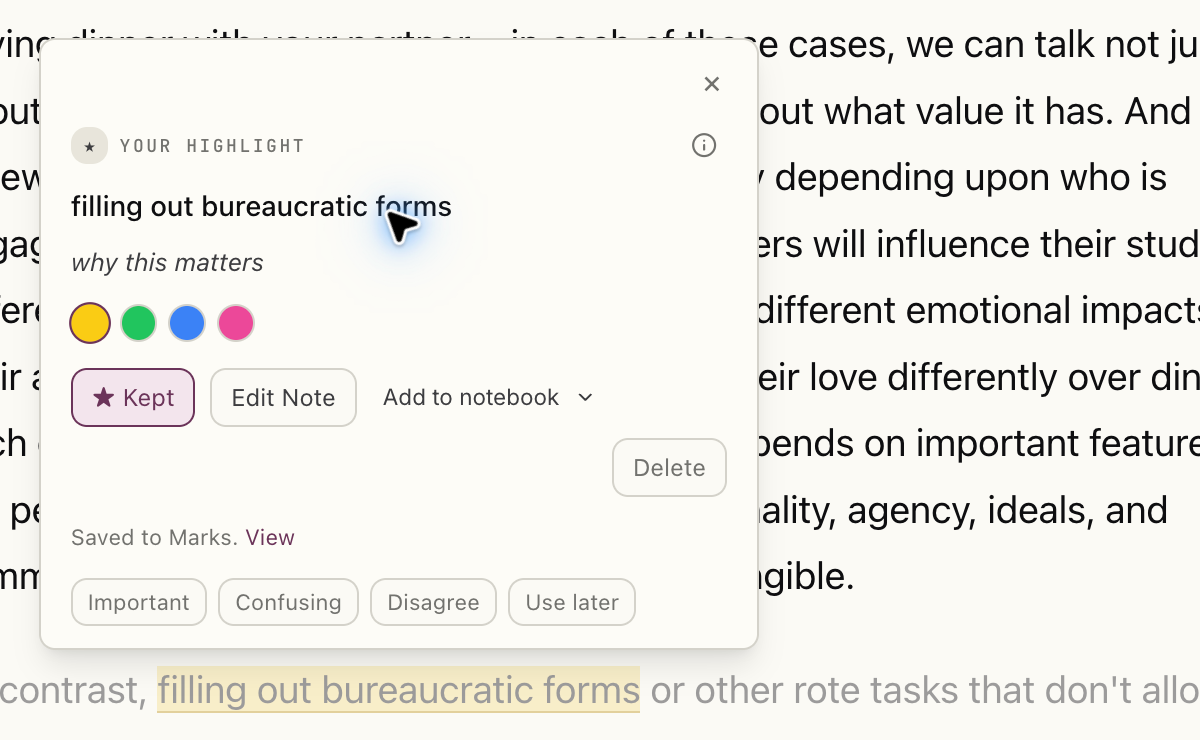
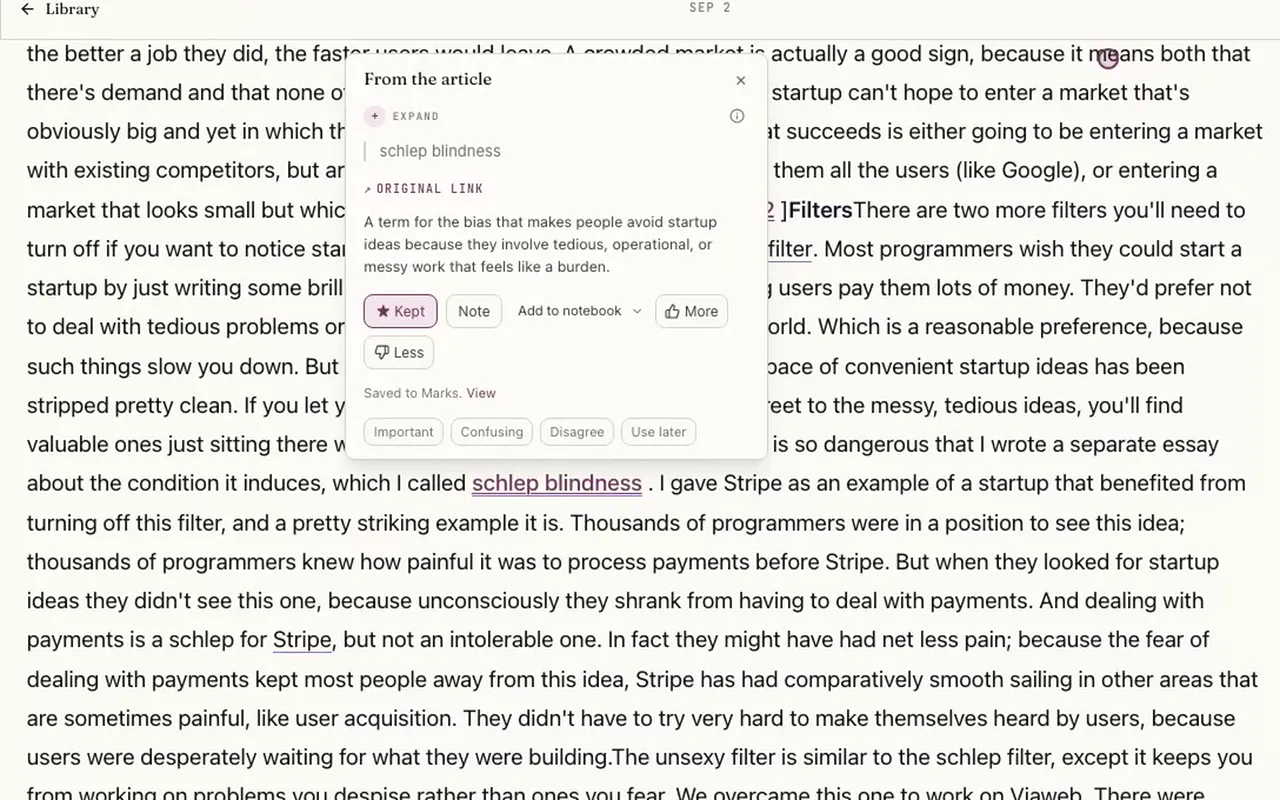
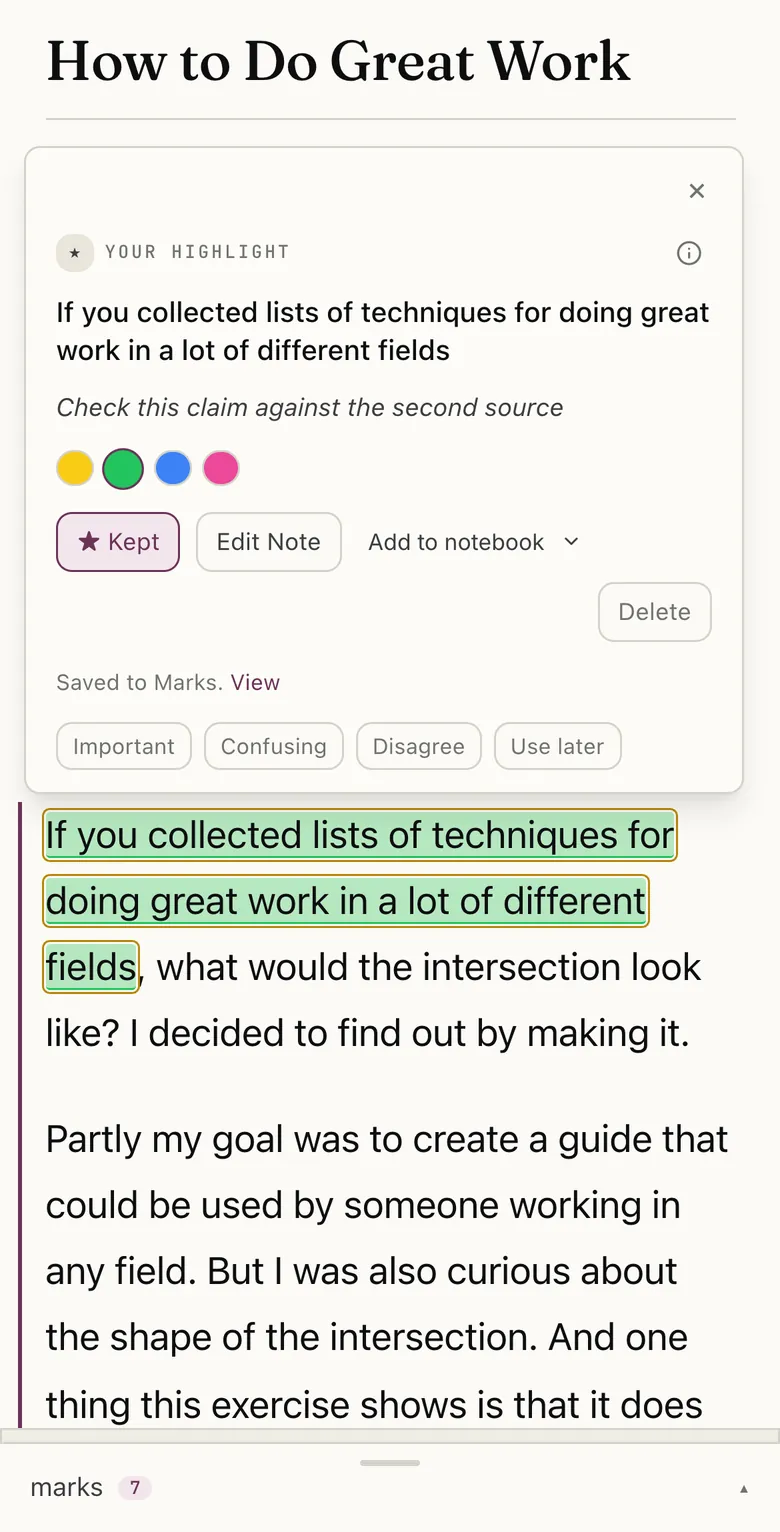
Select the passage and highlight it. You can give it a color. Then write one sentence of your own on the mark, and tag the reason it stopped you. The note stays on that passage in the article. Adding a note keeps the mark, so a passage you cared enough to write about does not quietly disappear.
Write the reason, not just the colour
Color says you noticed something. A sentence says what. “Check the evidence here.” “This qualifies the earlier claim.” “I do not yet know what this term is doing.” One line is enough. The longer case for why a note beats a bare highlight is that the mark should still be readable after the sitting ends, in words you would recognize as your own.
Tag what stopped you
Important, Confusing, Disagree, or Use later. The tag names why the line stopped you. It is not a filing system you have to maintain. You can keep the mark, edit the note, and see it saved to Marks. Your marks and the system’s explanation marks stay visibly distinct, so a gloss you opened is not mixed in with a line you chose.
Select the image to see the detail.
Select the image to see the detail.
Highlights stay linked to the paragraph they came from
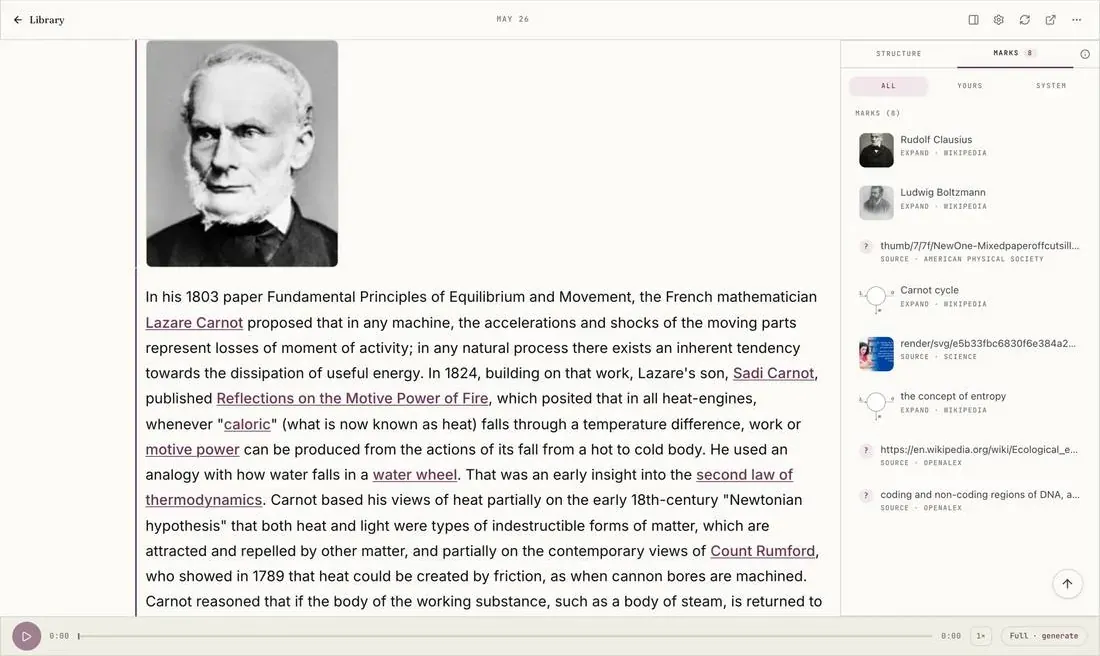
A mark is connected to the passage in the source. It is not a quote lifted into a separate list and left there. In the reader, the Marks rail sits beside the open article, so each mark is shown next to the text it belongs to.
Your marks and the system’s explanation marks stay separate. Filters for All, Yours, and System make that split visible. The underlined terms in the article below are system marks on a piece about Rudolf Clausius, listed in the rail beside the paragraphs they came from. They are explanation marks, not a stack of lines you highlighted. When you want the note you wrote, filter to Yours. The passage is still the article’s passage.
Select the image to see the detail.
Come back without losing the surrounding text
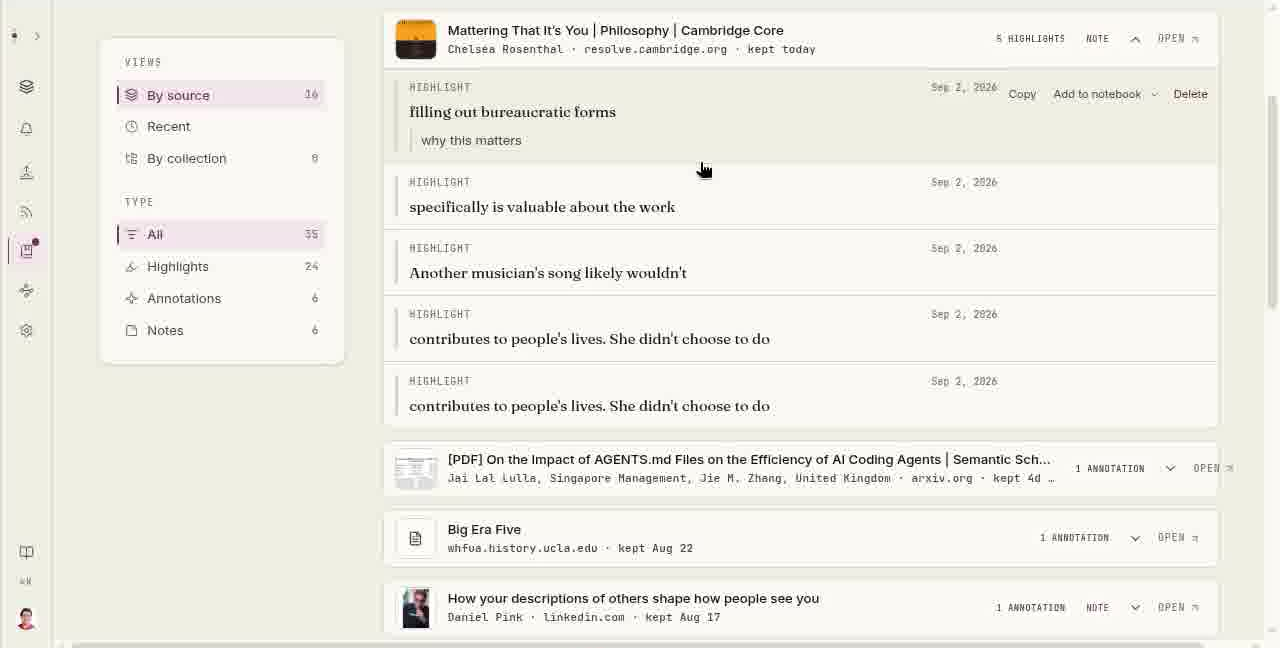
Return resumes the useful place rather than merely reopening the top of a file. The Marks page gathers every highlight, annotation, and note across the Library. Filter by All, Highlights, Annotations, or Notes. Select a mark to see it in context, with the sentences around it. Open article from there takes you straight to that passage in the full piece, and Open beside each source opens the whole piece. You are not handed a stripped quote and left to hunt for where it lived.
Today can bring a piece back, anchored to a note you left or where your reading stopped. There is no queue count and no streak. The next sitting starts in the article, at the work you already began.
The mark is a door back, not a card
A card can remind you of a phrase and still hide the sentence that qualifies it. Open the article from the mark. Read the sentences before it and the sentences after it. Resolve the hard part on the page, then update the note so the next return starts from what you now think.
A fifteen-minute return
Pick three marks that already have notes. Open each one in the article. Read a paragraph either side. Rewrite the note in your own words, or tag it Use later if the line is for a piece of work rather than a question you still have. Stop when you can say the author’s move: what the paragraph is doing, and what it depends on. Three untouched highlights are a familiar page. One rewritten note is a piece of the argument you can use.
Working through a PDF? The same mark-and-return loop is on PDF reading. For the habit of returning to what you read, and for an explanation beside it when the passage assumes a term you do not have, those pages go further. This one stays with the note on the article.
Select the image to see the detail.
Open the text and find your way through it
Here is Chelsea Rosenthal’s Mattering That It’s You in the reader. The section map sits beside the text, so you can move into the argument and return to a passage later. Explanations open where you are reading.
Highlight on one device, come back on another
Every plan works on every device. The web app, the iPhone and Android apps, and the Chrome and Firefox extensions all read from the same library, including on the free plan. Offline downloads are included at every tier. A few features are limited to the web app: Ask voice, and HD and Lifelike voices. Highlight now, podcast Moments and public episode pages work in the web app and mobile web, not in the native iPhone and Android apps.
On the mobile apps, any item can be downloaded to the device, the text as much as the audio. Anything you mark or note while offline syncs when the connection comes back. Use the share sheet on iOS or Android to send a supported link or file to Omphalis. The browser extension saves an article, and you can use the save details to add a Collection, tags, or a note.
The Omphalis app is on iOS and Android, so your library, reading, and listening travel with you. Web remains the most complete experience and the canonical surface.
Below is the Omphalis web app at phone size, open on Paul Graham’s How to Do Great Work. The highlighted passage keeps its note beside it, with the tags and Add to notebook on the same card.
Select the image to see the detail.
Bring related reading into a notebook
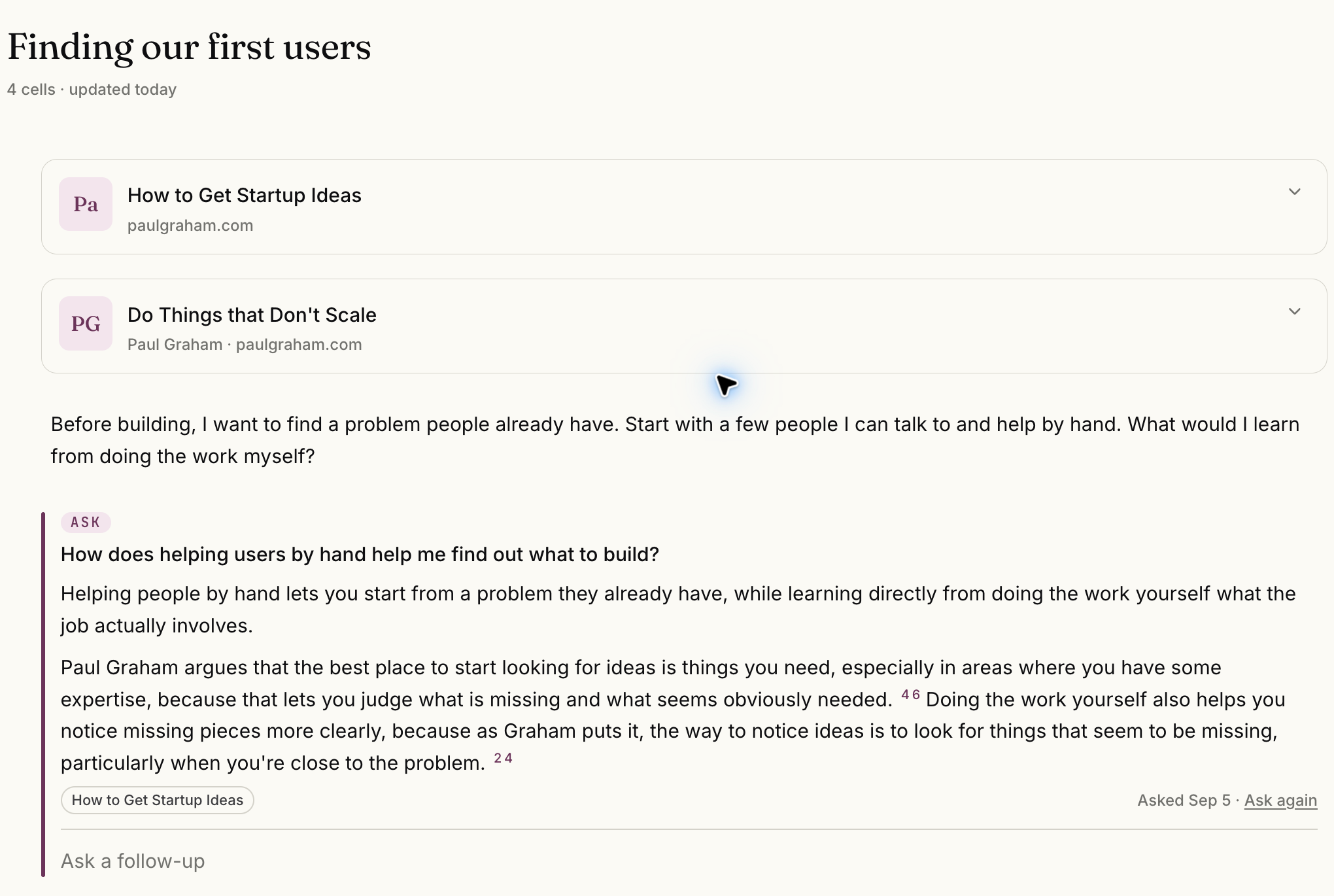
When a piece becomes useful for something you are working on, put it in a notebook with your own notes. A highlight can go there too. Add to notebook sits on the mark, next to Copy and Delete, so the passage and the note can join the working page without leaving the source behind.
In this demonstration, two Paul Graham essays sit above a working note and an Ask answer about finding what to build.
Select the image to see the detail.
When a highlights app or a bookmark list is enough
Readwise Daily Review suits you when retaining short lines is the job. A review that brings quotes back is a real practice, and it is the right one when the quote is what you need to keep.
Glasp suits you when public, social highlighting is the job. A bookmark manager suits you when saving and finding links is the whole job. If that is the whole job, stay.
Omphalis is for when you still have to finish the article and come back to the passage, with your note on it and the surrounding text still there.
Who this is for
Professionals with recurring reading from articles that matter: researchers, analysts, founders, writers, pastors. The source was chosen because the work depends on it. Often the same backlog also holds a paper or a talk. The article side of that work is a note on the passage and a way back into the paragraph.
Who should keep another tool
People whose job is quote recall, social highlighting, or storing links. A review app, a public highlighter, or a bookmark list already does that. Keep it. Come here when the next sitting has to start in the article, at the passage, with your note still beside it. If you have been asking NotebookLM about an article and want the note to stay on that passage, the NotebookLM alternative page is the comparison for one article, PDF, or episode.
A few practical questions
- What can I save to read later?
- You can bring articles, PDFs, EPUBs, Word documents, YouTube talks, podcasts, and newsletters into your Library.
- Can I listen to saved reading?
- Yes. Choose Listen for natural-voice narration prepared for spoken delivery. You can also read the text and keep highlights and notes.
- Can I bring an existing reading list?
- Omphalis supports imports from Pocket, Instapaper, and Raindrop. For Pocket, you need an export file you already downloaded; its export service is closed. Access to each article still depends on the original source.
- How do I keep a note beside a highlighted article passage?
- Select the passage and highlight it, then add a note saying why it mattered. You can tag it Important, Confusing, Disagree, or Use later. The note stays on that passage in the article, and adding a note keeps the mark, so it is there when you come back.
- Do highlights stay linked to the paragraph they came from?
- Yes. A mark is connected to the passage in the source. In the reader, the Marks rail lists your marks beside the article, and the Marks page gathers every highlight, annotation, and note across your Library with a way back into each article.
- How do I revisit a highlight without losing the surrounding text?
- Open the article from its mark instead of reading the quote on its own. Return resumes the useful place rather than the top of the piece, so the sentences before and after the highlight are still there to check. Read a paragraph either side, then update your note.
- Can I highlight on one device and come back on another?
- Every plan works on every device. The web app, the iPhone and Android apps, and the Chrome and Firefox extensions all read from the same library, including on the free plan. On the phone apps, anything you mark or note while offline syncs when the connection comes back. The web app has the most complete experience. A few features are limited to the web app: Ask voice, and HD and Lifelike voices. Highlight now, podcast Moments and public episode pages work in the web app and mobile web, not in the native iPhone and Android apps.
- Is this a replacement for a highlight review app?
- Not always. If resurfacing short quotes is the whole job, a review app such as Readwise’s Daily Review does that well. Omphalis is for articles you still need to finish and passages you need to understand in context when you come back.
- What about PDFs?
- PDFs use the same highlight, note, and return loop. See PDF reading for marking a confusing passage in a report or paper and coming back to it.
Start with one article you meant to read.
Highlight one passage, leave a note, and come back to it next time.
Start free
30-day trial, no card required. Includes 600 comprehension units, 200 Ask voice minutes and 15 assistant answers a day. After that, Free stays free. See plan allowances.
Written by Omphalis teamLast updated