How to Copy Text From a PDF and Keep the Formatting
Updated · 13 min read
Listen to this post
Contents
- TL;DR
- Table of Contents
- Why copied PDF text looks wrong
- Step 1: Work out what kind of PDF you have
- Step 2: Copy a text PDF with formatting
- Step 3: Remove line breaks and rejoin split words
- Step 4: If you cannot select text, run OCR
- Step 5: Know the limits and check the output
- Why recopying is the wrong habit for recurring work
- Perspective
- Choosing a plan for PDF work
- FAQ
- How do I copy text from a PDF without line breaks?
- Why can't I select or copy text in my PDF?
- Can I keep fonts and styles when I copy from a PDF?
- How do I copy a table from a PDF?
- Sources
- Recommended
Copied PDF text pastes badly because a PDF stores where each character sits on the page, not where a sentence or paragraph ends. So the fix depends on what kind of PDF you have: a text PDF needs a copy-with-formatting command or a quick cleanup of line breaks, and a scanned PDF needs OCR (optical character recognition, software that reads the picture of a page and turns it into text) before anything can be copied. If you pull passages out of PDFs every week, the better answer is to stop recopying and keep the text, your highlights and a way back to the page in one place. That is what we built Omphalis for.
TL;DR
- Copy with formatting (Acrobat and other desktop readers offer it) keeps fonts and styles; plain Ctrl+C or Cmd+C does not always.
- Extra line breaks and split words such as "implemen-tation" are fixed in Word with Find and Replace in about a minute.
- If you cannot select any text, the PDF is probably a scan: run OCR first, then copy, then proofread.
- Tables, columns and numbered headings are the hardest cases. Check them after pasting.
- For recurring research reading, keep passages inside a workspace that links every note back to the original page, so you copy less and lose nothing.
Table of Contents
- Why copied PDF text looks wrong
- Step 1: Work out what kind of PDF you have
- Step 2: Copy a text PDF with formatting
- Step 3: Remove line breaks and rejoin split words
- Step 4: If you cannot select text, run OCR
- Step 5: Know the limits and check the output
- Why recopying is the wrong habit for recurring work
- Perspective
- Choosing a plan for PDF work
- FAQ
- Sources
Why copied PDF text looks wrong
A PDF is a print format. Each line of a page is often stored as its own small piece of text with a position, and many files never record where a paragraph starts or stops. Software that extracts text has to guess, which is why results are never perfect. This explanation comes up again and again in long-running user discussions about PDF extraction, and it matches what you see on screen.
The symptoms map to a handful of causes:
| What you see after pasting | Usual cause |
|---|---|
| A line break after every line | Each visual line is a separate text piece |
| Words split with a hyphen, like "implemen-tation" | The layout hyphen was copied as a real character |
| Two columns read alternately, line by line | The reading order follows position, not the column flow |
| Gibberish characters | The font does not record which letter each shape is |
| Nothing highlights at all | The file is a scan, or the author locked copying |
| Wrong font or size | The source font is missing on your system, so a substitute is used |
Knowing which row you are in saves time. A line-break problem is a ten-second fix. A gibberish problem is not fixable by cleanup at all, and you need the original document or a different approach.
Step 1: Work out what kind of PDF you have
Try three quick checks.
- Click and drag over a word. If the selection box covers the whole page, the page is an image.
- Search the file with Ctrl+F (Cmd+F on a Mac). No hits for a word you can see usually means there is no text layer.
- Check the fonts. In Acrobat, Document Properties (Ctrl+D) has a Fonts tab. An empty list points to a scan.
Be aware that some recent browsers and Mac Preview run background OCR, so a scan may look selectable while being less accurate than a true text PDF. If the pasted text has odd characters, treat it as a scan.
There is one more blocker: permissions. Authors can restrict copying, and in that case the copy commands stay disabled until you have the right password or permission from the owner of the file. If you do not have that, ask the author for an unrestricted version.
Step 2: Copy a text PDF with formatting
If you can select text, you have good options.
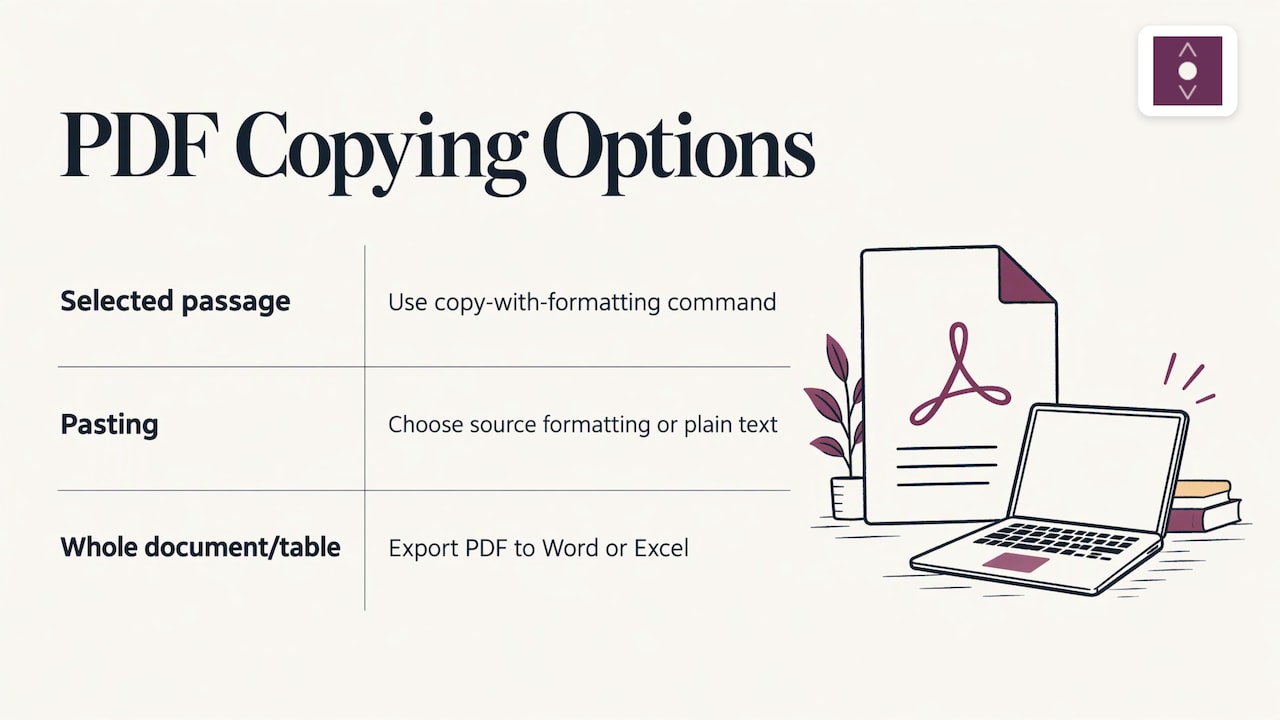
In a desktop PDF reader. Select the passage with the Select tool and use the reader's copy-with-formatting command. Adobe documents Copy, Copy with Formatting and Export Selection As in its guide to reusing PDF content. The same page warns that when the copied text uses a font your system does not have, a close match or default font is substituted. That is normal, not a sign that the copy failed.
When you paste. Pick "Keep Source Formatting" in the paste options of Word or Google Docs if you want the look of the original. Pick "Keep Text Only" if you want clean text you will style yourself. For research notes, plain text is almost always the better choice, because carried-over fonts and sizes clash with your own document.
For a whole document or a table. Do not copy page by page. Export the PDF to Word or Excel from your PDF software and work from that file. Tables survive far better in a spreadsheet than as pasted text, and numbered headings drawn as images may still need a manual check.
A practical example: you copy a three-paragraph quote from a journal article. Pasted into Word, it arrives as eleven short lines with a word split across two of them. You do not need to retype it. You need the cleanup below.
Step 3: Remove line breaks and rejoin split words
This is the fix for the second most common complaint, and it takes about a minute in Word.
Pasted a single paragraph?
- Paste the text, then press Ctrl+H to open Find and Replace.
- In Find what, enter ^p (the code for a paragraph mark). In Replace with, enter a single space.
- Click Replace All.
Pasted several paragraphs? The method above would glue them into one block. Use three passes instead:
- Replace ^p^p with @@@ (a marker that does not appear in your text).
- Replace ^p with a single space. This joins the wrapped lines.
- Replace @@@ with ^p^p to restore the paragraph breaks.
This three-pass routine is the one described in a step-by-step text extraction guide, and it works because it protects the blank line between paragraphs before it removes the others.
Words split by hyphens. Search for a hyphen followed by a space ("- ") and review each hit. Replace only the ones that are broken words. A real compound such as "long-term" should stay, so do not use Replace All blindly here.
Two things to know. First, the cleanup is only as good as the paste: if a two-column page was read across both columns, no replace will unscramble the sentences, so copy one column at a time. Second, pasting into a plain-text editor first strips stray formatting before you move the text on.
Step 4: If you cannot select text, run OCR
A scanned PDF is a stack of photographs of pages. To copy from it, you first create a text layer.
In Acrobat the route is All tools, then Scan & OCR, then In this file. Choose the pages and the language, click Recognize Text, and save the file so the hidden text layer stays with it. Older Acrobat versions put the same command under Enhance Scans, then Recognize Text, then In This File, as in the California bar association's Acrobat manual for lawyers, which also notes that a PDF must be searchable and not secured before you can copy from it. On a Mac, Preview's Live Text, or a screenshot taken with Cmd+Shift+4, can recover a short passage from an image.
What decides the quality of the result is the scan itself:
- Straight, high-contrast pages at around 200 dpi or better read well.
- Blurry photos, curved book pages and handwriting do not.
- Tables usually come out as running text.
- Typical mistakes are "rn" read as "m" and a zero read as the letter O.
Proofread every OCR passage before it goes into a paper, a sermon, a script or a report. Pay particular attention to names, numbers and quotations, since those are the errors nobody forgives.
Step 5: Know the limits and check the output
Some problems need a different input rather than a better trick.
- Gibberish from a font with no character map. Cleanup cannot recover letters the file never recorded. Ask for the original Word or Google Docs file, or the publisher's HTML version.
- Text drawn as pictures, such as heading numbers. These must be retyped.
- Complex tables. Export to a spreadsheet and verify the column and row structure against the page.
- Equations and special symbols. Compare them with the page after pasting.
A ninety-second check saves embarrassment: put the original page and your pasted text side by side and read the first and last lines of each paragraph, any numbers, and any headings.
If you manage course documents, worksheets and tables for a lab or class, it also helps to decide once where the clean copy lives. A document control system for labs is one way of thinking about keeping a single approved version of each file, so nobody pastes from an outdated PDF.
Why recopying is the wrong habit for recurring work
Everything above fixes one passage. Researchers, students, writers, pastors, podcast hosts and lab leads do this dozens of times a week, and the same problems come back each time: a quote with no page number, a paste with no source, a highlight you cannot find again.
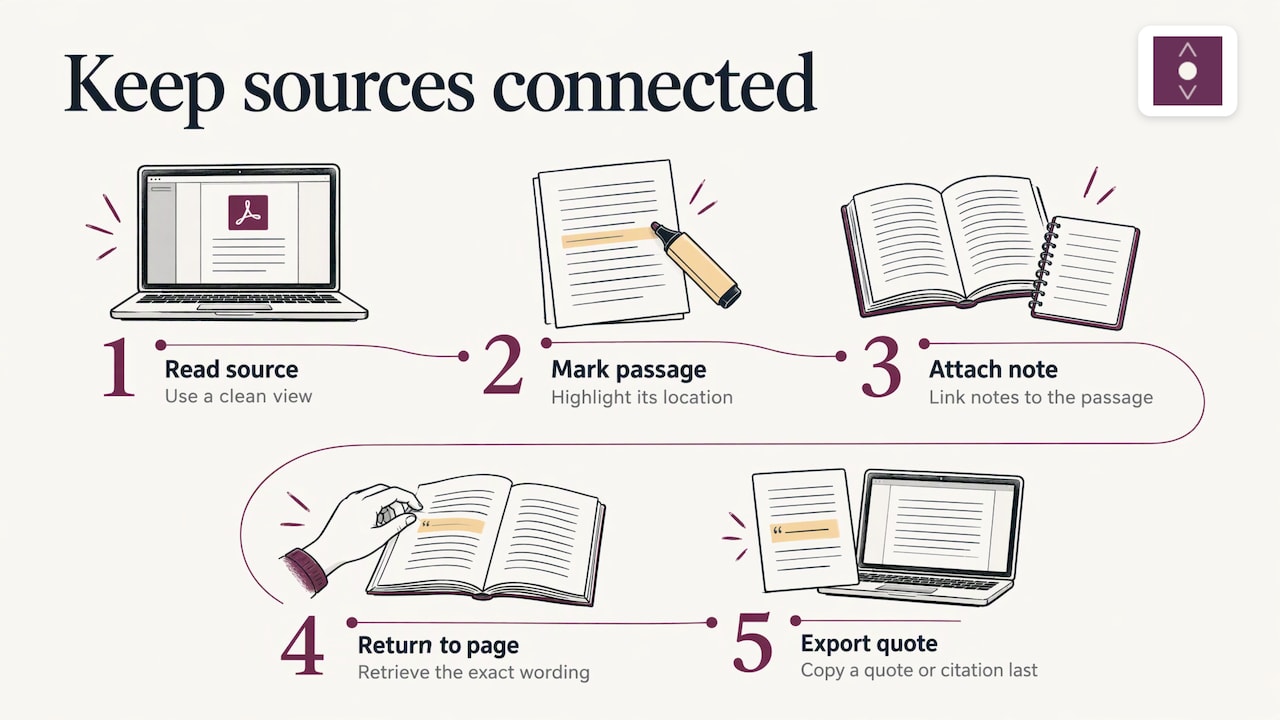
The pattern that works better is to stop treating the PDF as a pile of text to extract and treat it as a source you keep. You read in a clean view, you highlight where the passage is, you attach the note to that passage, and you can get back to the original page whenever you need the exact wording. Copying becomes the last step, a quote or a citation you export, instead of the first step of every task.
That is the reasoning behind how we built Omphalis: a workspace where saved sources stay connected to your notes and to the original. If you want the longer technical version of the steps above, including digital, scanned and highlighted files, we have written it up in our guide to extracting text from a PDF, and the scanned case in making scanned text selectable with highlights. If you only need to mark up a file in the browser, there is also a walkthrough for highlighting PDFs in Chrome, Edge and Firefox.
When your finished notes need to land in a document, exporting notes to DOCX keeps the work you did in the workspace rather than repasting from the PDF.
Perspective
Most advice on copying from PDFs is about rescuing one paragraph. That is fine on a Tuesday afternoon, but it is a poor way to do a semester or a book project.
We built Omphalis as a source-first workspace for recurring work. You can save PDFs, EPUB and DOCX files, web articles, podcasts, YouTube videos and voice notes, read them in a clean view with a way back to the original, and keep highlights and notes beside the exact passage. When you are stuck on a passage, you can ask for help on that passage, and when you ask questions of your own sources, the answers show where they came from.
That changes the job. You are not repairing line breaks to get a quote into a draft. You are working from a source that still knows where each passage lives, and you can export citations and notes when you need them elsewhere.
We are not a summarizer or a chat-with-files tool. Our aim is understanding built from the sources you chose, and for a group, Workspaces keep shared sources and reading lists separate from each member's personal Library, so leaders never see members' private marks.
Omphalis Team
Choosing a plan for PDF work
The plan matters here because of one fact: PDF reading starts on Pro. The Lite plan at $4 a month keeps PDFs by name and page count only, with no PDF reading, so if PDFs are your main material, Pro at $9 a month ($90 a year) is where to start. Premium is $19 a month and Scholar is $39 a month. The Free plan at $0 includes 40 units a month, and there is a 14-day trial with no card required, so you can try your own papers first. Groups such as seminars, labs and reading groups can look at Workspaces, including a Semester pass at $25 per student for a four-month term.
If you read PDFs all term, start with a trial and bring the files you struggle with most.
Plans and Workspaces are on our pricing page, and group options are on the Workspaces page.

You can also pull exact lines from transcripts and articles with the quote finder.
FAQ
How do I copy text from a PDF without line breaks?
Paste it into Word, press Ctrl+H, and replace ^p^p with a marker such as @@@, then replace ^p with a space, then replace the marker with ^p^p. This joins the wrapped lines while keeping real paragraph breaks. For one paragraph, replacing ^p with a space is enough.
Why can't I select or copy text in my PDF?
Either the file is a scan, which has no text layer until you run OCR, or the author has restricted copying. Try Ctrl+F for a visible word: no results usually means a scan. For a restricted file, you need the correct permission or password from the owner.
Can I keep fonts and styles when I copy from a PDF?
Often yes. Use your reader's Copy with Formatting command, then choose Keep Source Formatting when you paste. If the font is not installed on your computer, a close substitute appears instead. For notes and drafts, pasting as plain text and styling it yourself is usually cleaner.
How do I copy a table from a PDF?
Copying table cells one by one rarely works. Export the PDF to Excel or Word and check the rows and columns against the page. Scanned tables usually come out as running text after OCR, so verify every figure.
Sources
- How to copy text out of a PDF without losing formatting? (Super User)
- Reusing PDF content (Adobe Help)
- How to Extract Text From a PDF, Including Scanned PDFs (URLtoText)
- A Legal Professional's Adobe Acrobat manual (COBAR)